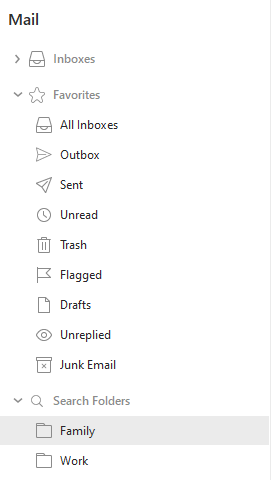
Search Folders represent a smart utility that enables you to create a new folder with predefined rules which will filter out particular emails from the Favorite Folders. If you receive a new email that fulfills the rules of the search folder you created, then it will be automatically included in to the folder. Search folders can be also created for messages, tasks, events and contacts.
Search folders will not show the unread message count.
You have three options how to create a search folder. You can either:
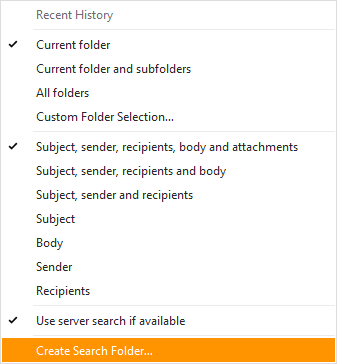
1. click on Menu > Edit > Find from the Menu (shortcut Ctrl + Shift + F) to access the search field and define the rules for a new search folder or
2. right-click on the Search Folders section in Folder list (if you already have Search folder) and select New Search Folder...
3. open the Advanced search pop-up next to the Search tab and (after setting your preferences) click Create Search Folder... button.
When creating or editing the search folder, this window will appear.
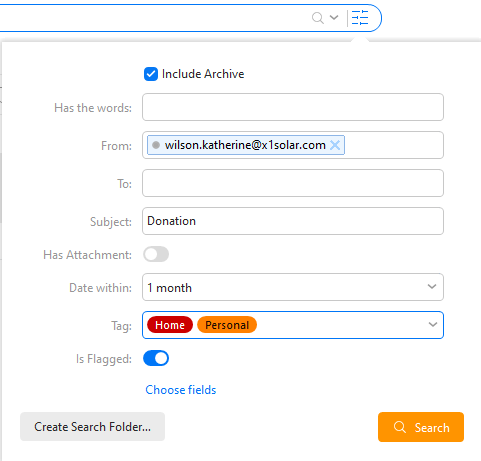
Once you select the option to create a new Search folder, you will be able to set the Search Folder Name which will be the name of the folder in the folder list.
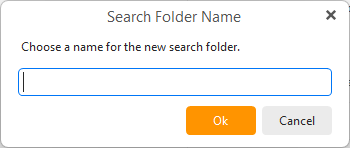
You can add other arguments by clicking on the Choose fields button - .
.
A list of the available arguments will show up, select the one you want to add. Remember that some fields can contain more than one value. For example in the picture (Tag) there are 2 different tags selected: Home and Personal- this means that the query will search emails within these 2 tags.
Removing fields - to remove a filed simply open the 'Choose fileds' option and uncheck it.
To finish the creative process of the search folder click on the Okbutton. Once the search folder is created, it will appear in the Email section of the Navigation Bar. Search folders can be renamed or deleted or editor via right-click > Properties.